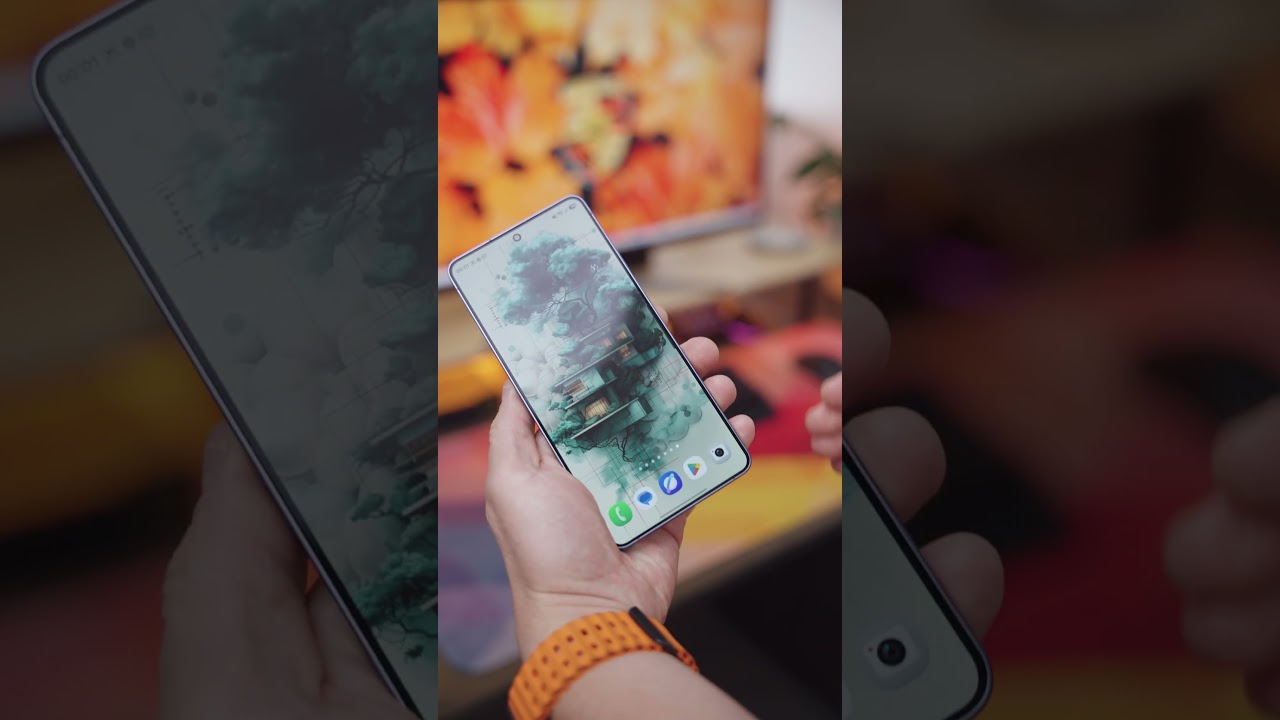
Short answer: there are two ways to take a screenshot on the Samsung Galaxy S26 Ultra. Press the lock button and the volume down button at the same time, or swipe the side of your hand across the screen using Palm swipe to capture. Watch the quick video below, then read the steps.
Method 1: press the lock button and volume down
This is the classic way. Press the lock button and the volume down button at the same time. The Galaxy S26 Ultra takes a screenshot automatically.
Method 2: swipe your palm across the screen
If you want a better and cooler way to take a screenshot, swipe the side of your hand across the screen. This is called Palm swipe to capture.
Tips from my own use of this feature on Samsung phones:
- Keep your hand in contact with the screen as you swipe.
- Swipe confidently: not too slowly and not too quickly.
Frequently asked questions
What is the fastest way to screenshot on the Galaxy S26 Ultra?
Press the lock button and volume down together. It captures the screen straight away.
How do I screenshot without pressing buttons?
Use Palm swipe to capture. Swipe the side of your hand across the screen.
Palm swipe isn’t working. What should I do?
Check that Palm swipe to capture is switched on. On the Galaxy Z Flip 7, I found it under Settings, Advanced features, Motions and gestures, and the menu names may differ slightly on your S26 Ultra. Also make sure your hand stays in contact with the screen and that you swipe at a steady, confident speed.
Where can I find my screenshots?
Open the Gallery app and look in the Screenshots album.
For more Samsung tips, see my Galaxy Z Flip 7 tips and tricks video, which also covers the palm swipe setting.
Watch the Short on YouTube | Samsung Galaxy S26 Ultra on Amazon
Disclosure: the Amazon link above is an affiliate link. If you buy through it, I earn a small commission at no extra cost to you, which helps support the channel.