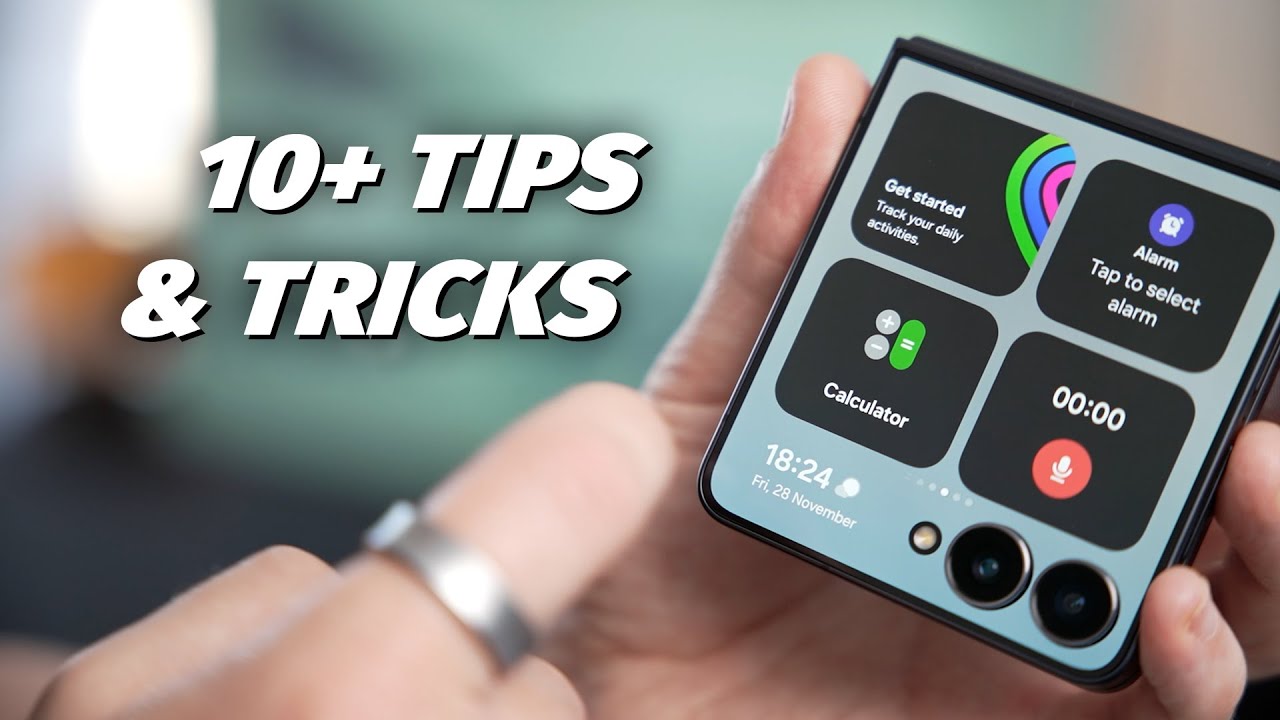
Samsung’s Galaxy Z Flip 7 is a really cool phone, and these are my favorite Samsung Galaxy Z Flip 7 tips and tricks to make it feel like a high-end premium device. They cover performance, split-screen multitasking, the cover screen, One UI 8 customization and a few features that only a flip phone can do. Menu names are as they appear on my Flip 7 running One UI 8 and may differ slightly on your version.
The 13 Galaxy Z Flip 7 tips and tricks
1. Unlock 12GB of RAM
The Z Flip 7 can go up to 12GB of RAM, but it ships with 8GB enabled. To unlock the rest:
- Go to Settings, then Device care, then Memory.
- Select RAM Plus.
- Change the default 8GB to 12GB and let the phone restart.
This uses part of your phone’s storage as extra RAM. You lose some storage, but the performance improvement is worth it.
2. Split any app
Split screen is great on the Flip 7, but not every app supports it. Go to Settings, then Advanced features, then Labs, and turn on Multi window for all apps. Now you can split any app, whether it officially supports it or not.
3. Save app pairs to your favorites
If you often use the same two apps together, open them in split screen, tap the three dots in the middle and tap the star icon. Choose where to save the pair, and one tap on its icon opens both apps in your preferred layout. You can save as many combinations as you like.
4. Swipe to split
Go to Settings, then Advanced features, then Multi window, and turn on the options. Then, in any app you want to split, swipe up with two fingers to start split screen.
5. Use 90/10 split view
Not everyone wants a 50/50 split. Enter split screen and drag the dividing line almost all the way to one side to get a 90/10 view. Tap the app you want and it instantly becomes larger. This is great on the Flip 7, because its screen isn’t as big as the Fold 7’s when open, so you lose only a little space while still switching quickly between two apps.
6. Turn your phone into a mini laptop with a trackpad
While watching a video or browsing with the phone open, fold it to a 90-degree angle. A new icon appears at the bottom left of the screen. Tap it and the bottom half becomes a trackpad. You can scroll through web pages, reach quick settings such as volume and brightness, and type on a virtual keyboard like on a real laptop.
7. Use wireless DeX
Wireless DeX turns your phone into a desktop computer without any cables. You need your Flip 7 and a compatible display, such as a smart TV, both on the same network.
- Swipe down from the top to open the quick settings panel.
- Select Wireless DeX.
- Pick the display you want from the list of nearby displays.
Once connected, you can use the Flip 7 as a trackpad and keyboard through the icon at the bottom left of the screen. For a more PC-like experience, connect a Bluetooth mouse and keyboard too.
8. Watch content on the cover screen
The Flip 7’s cover display is bigger than it’s ever been, so use it. Go to Settings, then Advanced features, then Labs, and tap Apps allowed on cover screen. Choose which apps you want to use while the phone is folded shut. Natively, it’s limited to Maps, Messages, Netflix and YouTube, but you can add support for more apps by installing MultiStar.
9. Change the notification and quick panel layout
One UI 8 keeps the split notification and quick settings panels. If you don’t like that, drag down from the top right, tap the pencil icon, then tap Panel settings at the top left. Choose Separate (the default) or Together. You can also move the quick panel to the left side.
10. Make your lock screen clock flow around your wallpaper
This is a new customization feature in One UI 8. Long press your lock screen, tap the clock, and choose the adaptive text option. The clock changes shape to flow around your wallpaper, with a subtle animation.
11. Take a screenshot with a palm swipe
Instead of pressing the power and volume buttons together, swipe the side of your hand across the screen. Go to Settings, then Advanced features, then Motions and gestures, and turn on Palm swipe to capture. Your hand needs to stay in contact with the screen, and the swipe should be confident: not too slow and not too quick. It works on the main inner display but not on the cover display.
12. Hold a face-to-face translation with Interpreter
Interpreter is awkward on a normal phone, where you have to keep turning the screen or lay it flat on a table. On the Flip 7, you can fold it to 90 degrees and stand it between you and the other person, so each of you sees the translation on your own side at the same time. Open the Interpreter app, tap the button at the top right, and you’ll see a message that the translation of what you say will appear on the cover screen. Then fold the phone and you’re ready.
13. Add an edge lighting effect when charging or unlocking
- Go to Settings, then Modes and Routines.
- Scroll down to Charging and tap Edge lighting effect.
- Choose a preset or customize it.
For the same effect when you unlock your phone, create a new routine. For the If condition, select unlock with fingerprint, and the edge lighting plays every time you unlock.
Frequently asked questions
How do I get 12GB of RAM on the Galaxy Z Flip 7?
Go to Settings, Device care, Memory, then RAM Plus, and change the 8GB default to 12GB. The phone restarts, and some of your storage is used as extra RAM.
How do I use split screen with any app on the Galaxy Z Flip 7?
Turn on Multi window for all apps under Settings, Advanced features, Labs. Then use split screen, or swipe up with two fingers if you’ve enabled swipe to split.
Can I watch YouTube on the Z Flip 7 cover screen?
Yes. YouTube, Netflix, Maps and Messages are supported on the cover screen natively. Turn them on under Settings, Advanced features, Labs, Apps allowed on cover screen. MultiStar can add more apps.
How do I take a screenshot on the Galaxy Z Flip 7?
Besides the button combination, you can turn on Palm swipe to capture under Settings, Advanced features, Motions and gestures. It works on the inner display but not the cover display.
Can the Galaxy Z Flip 7 work like a computer?
Yes, with wireless DeX. Connect it to a compatible display such as a smart TV on the same network, then use the phone as a trackpad and keyboard, or add a Bluetooth mouse and keyboard.
What’s your favorite Z Flip 7 feature?
These are only my top tips, and the Flip 7 can do much more. Share your favorite Galaxy Z Flip 7 features in the YouTube comments and let’s see how many we can add to this list.
Watch the full video on YouTube | Samsung Galaxy Z Flip 7 on Amazon
Disclosure: the Amazon link above is an affiliate link. If you buy through it, I earn a small commission at no extra cost to you, which helps support the channel.